Connect a server
Connect a Linux server to the Mac app over SSH. Dray installs itself there, and your agents run there, not on your laptop.
All you need is a Linux server you can reach over SSH with a key. The Mac app does the rest.
Add the server
In the Mac app, open Settings → Servers → Add server and paste the SSH line, like ssh root@1.2.3.4.
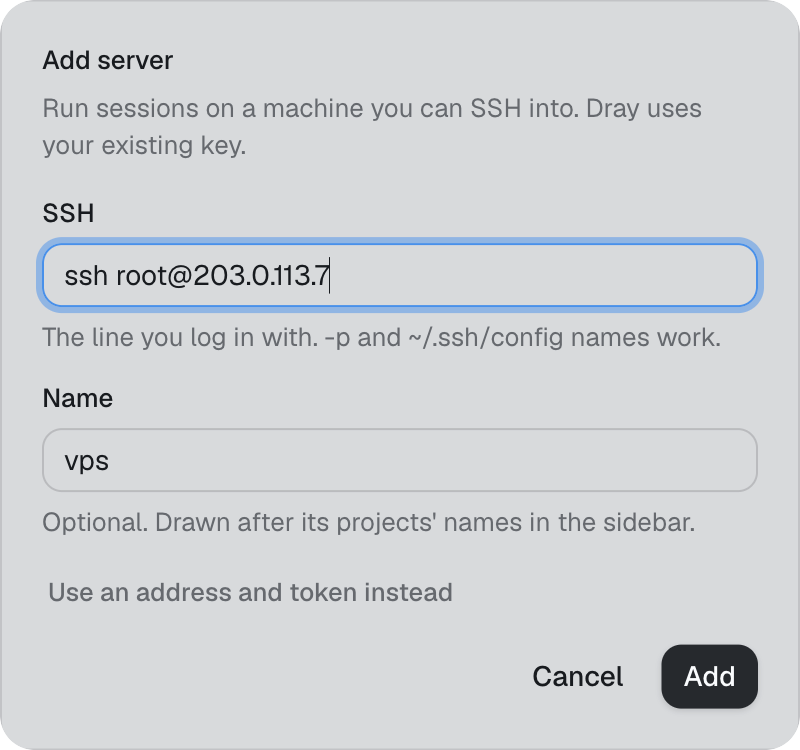
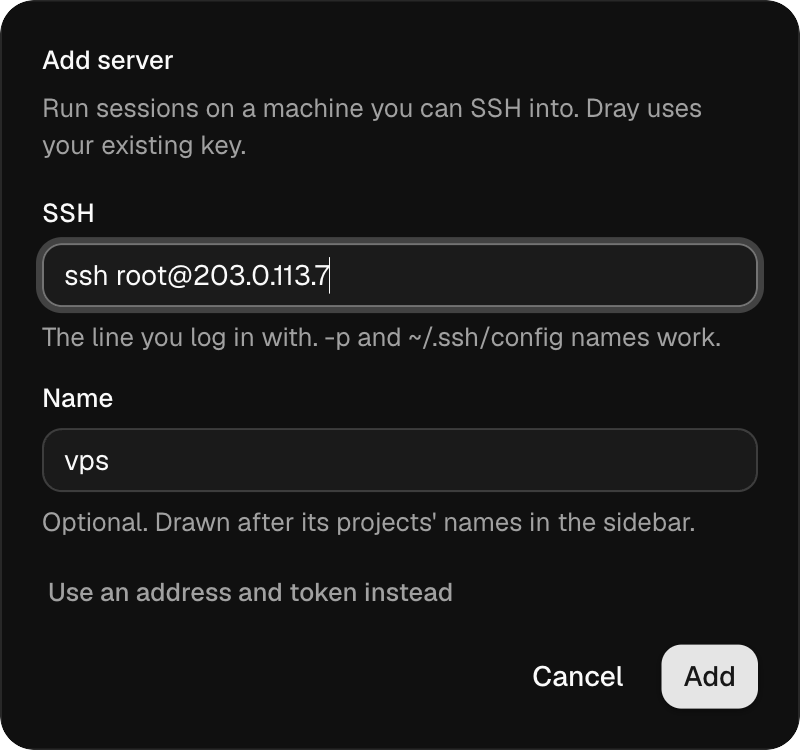
The app connects with your Mac’s own ssh. No port is opened, no password is stored, and Dray never sees your key. If SSH asks for a password, the app shows the ssh-copy-id line that sets up a key.
Install Dray there
If Dray is not on the server yet, the app offers to install it. Pick what else to install: Claude Code, Codex, pi, fx and Grok Build, plus git, the GitHub CLI, ffmpeg and a browser for your agents.
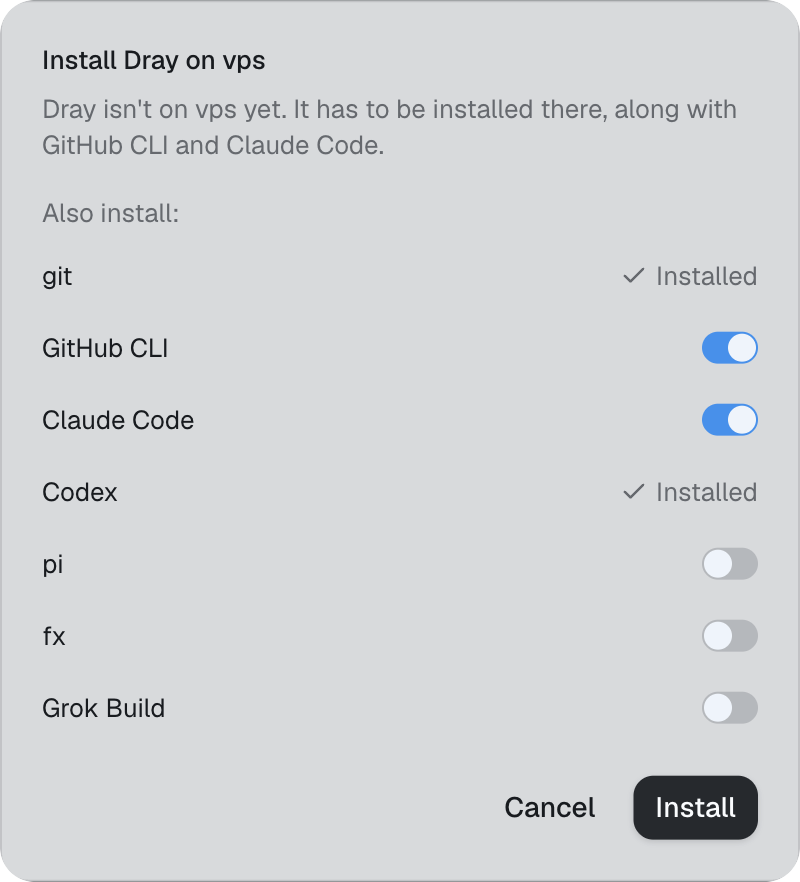
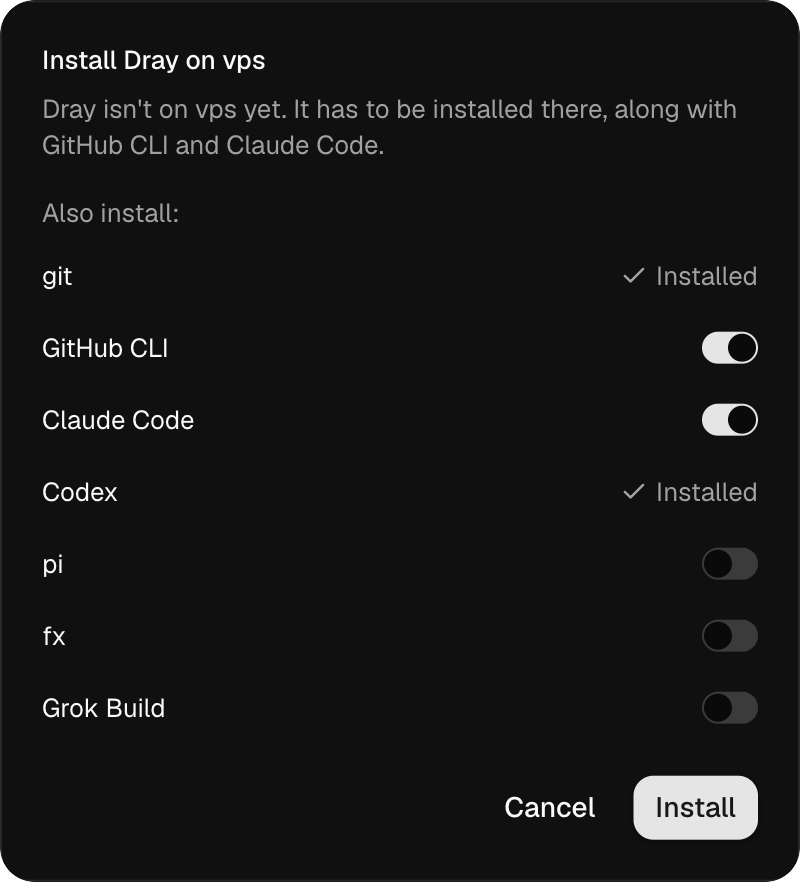
Dray runs as a systemd user service, so it keeps running after you log out and comes back after a reboot. That needs linger on your user; if setup cannot turn it on, it says so, and sudo loginctl enable-linger <user> fixes it. If Dray is installed but stopped, the app starts it.
Sign in
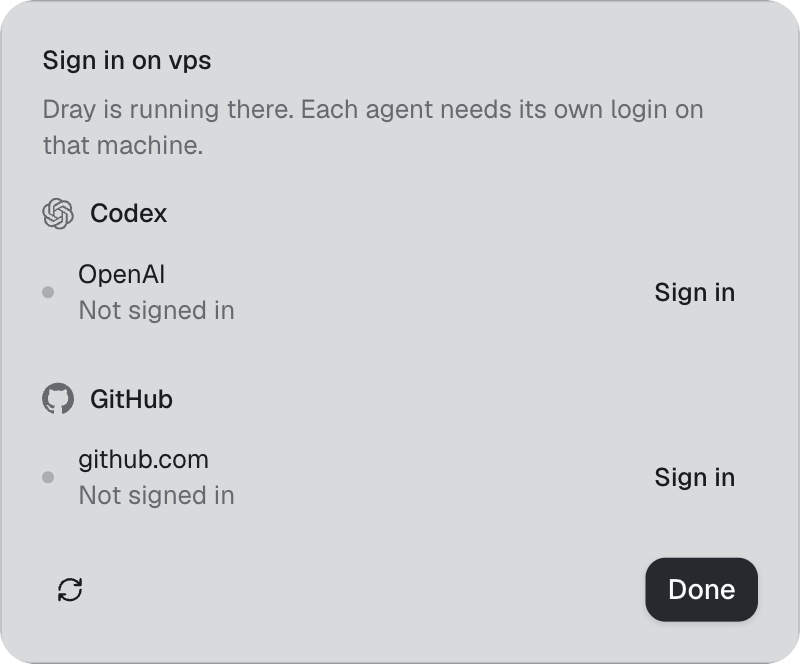
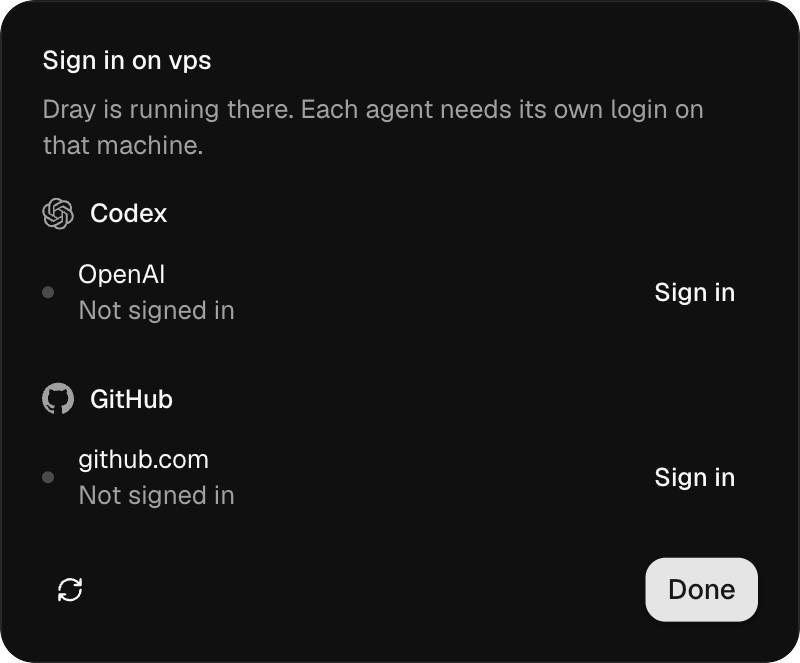
Each agent needs its own login on the server, and so does gh. Once Dray is running there, the app shows that server’s accounts, the same list as Settings → Accounts. Sign in opens Terminal on the server, running that login.
Attach a project
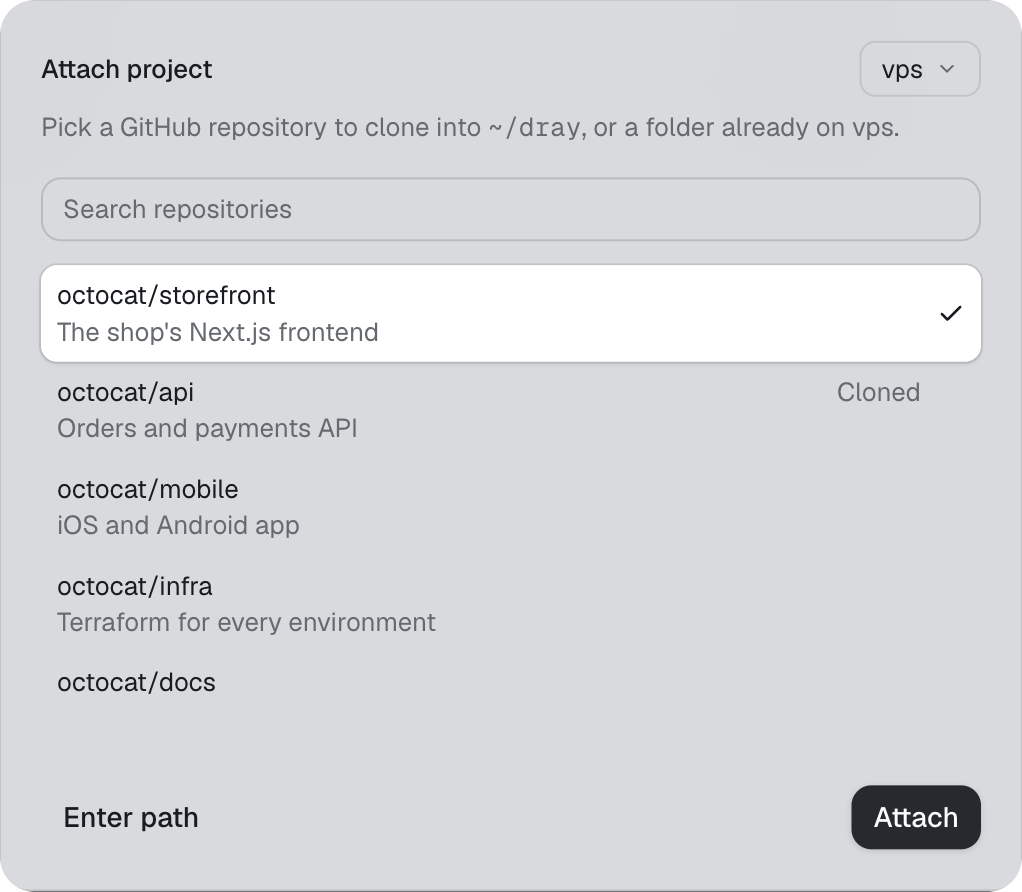
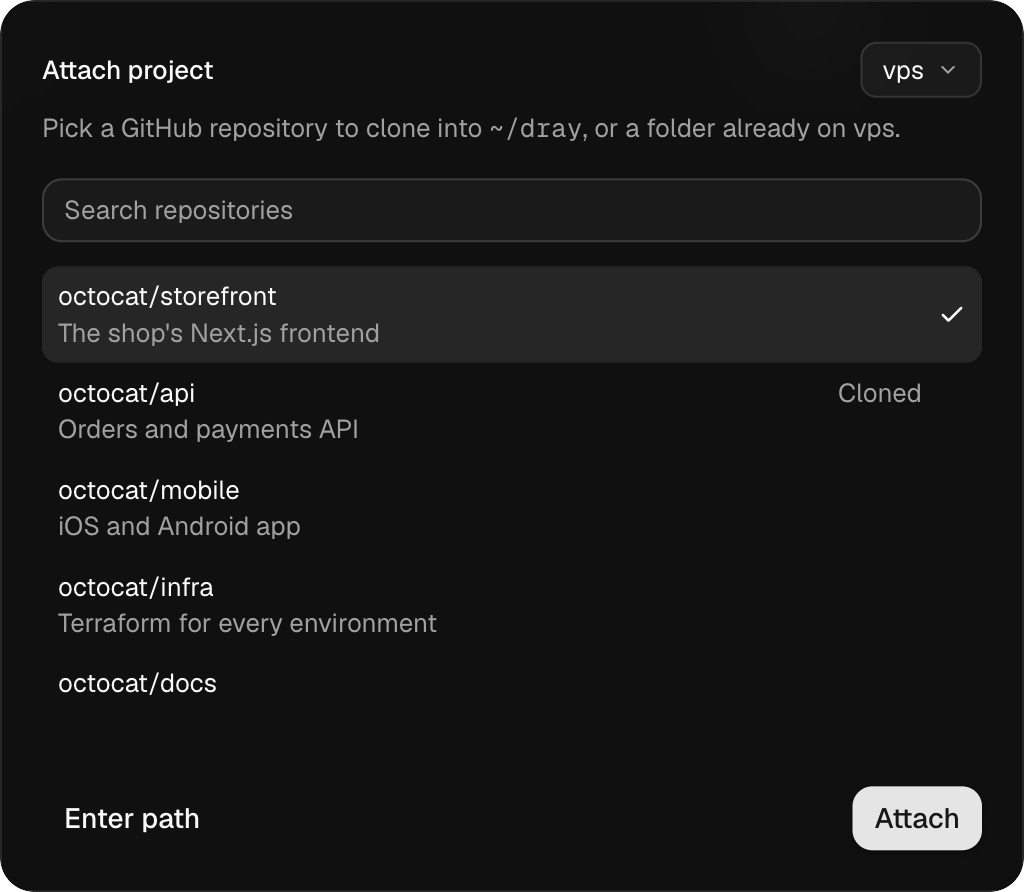
Attach a project, pick the server, and choose one of your GitHub repos, read through gh on that server. Dray clones it to ~/dray/<repo> there. A path to a folder already on the server works too.
Then start a session like any other.
Install from the server instead
If you would rather install by hand, log in to the server and run:
curl -fsSL https://www.drayhq.com/install.sh | shThis installs dray and dray-serve into ~/.local/bin, then dray setup asks the same questions as the app and starts the service. It ends by printing the SSH line to paste into Add server.
What works today
- Linux on x86_64 and arm64.
- You use it through the Mac app. There is no browser version and no phone app yet.
- A Mac cannot be set up over SSH like this. To reach one Mac’s sessions from another, use Remote access.